Mock Interview
Use your normal microphone. PoisePath asks a question, then listens to your spoken answer. BlackHole is not needed.
PoisePath supports Mock Interview with a normal microphone. Live Coaching needs optional system-audio setup and should be used only for permitted or disclosed sessions.
These are different audio paths. Picking the simpler one first avoids unnecessary setup.
Use your normal microphone. PoisePath asks a question, then listens to your spoken answer. BlackHole is not needed.
Use BlackHole 2ch with a macOS Multi-Output Device. You still hear computer audio through your normal speakers or headphones while PoisePath receives it.
BlackHole is a virtual macOS audio driver. It carries computer playback to another app; it is not a normal app you open from Applications.
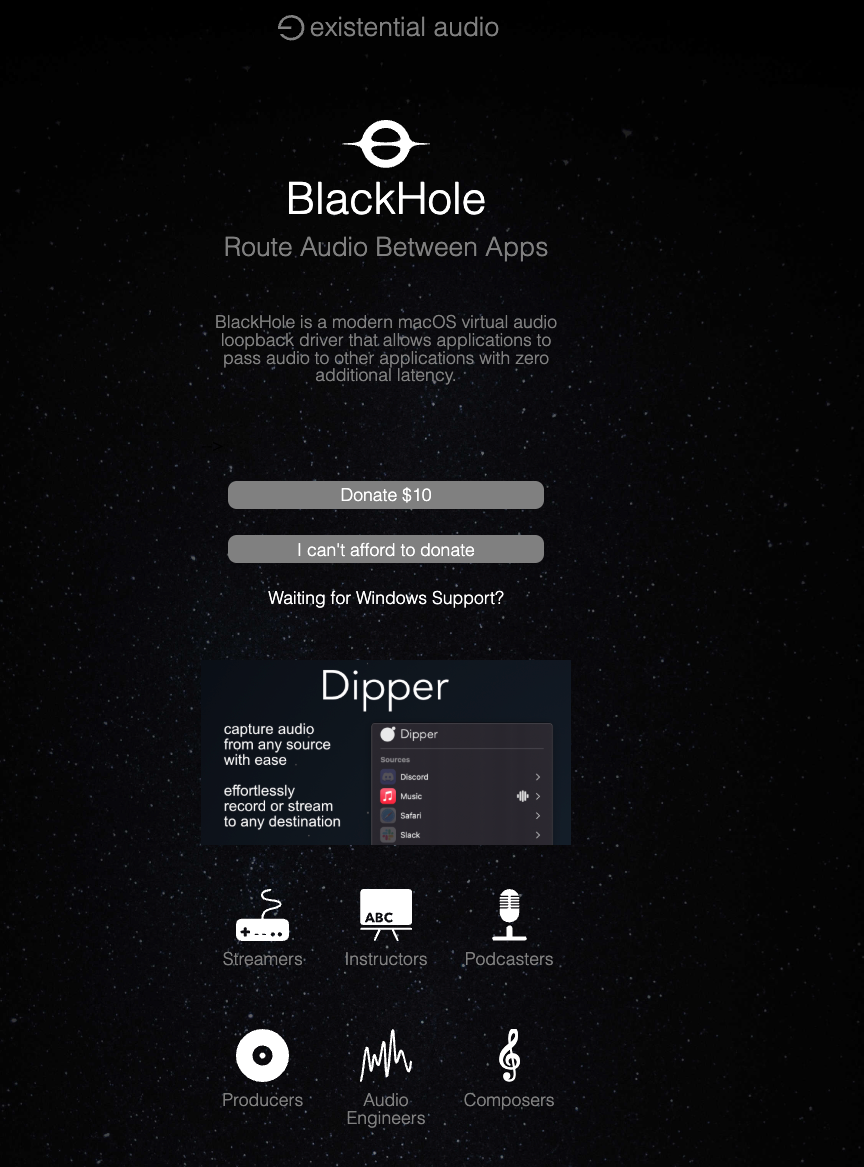
Open the official BlackHole starting pageFollow the official Existential Audio flow for BlackHole 2ch. Depending on the current download flow, you may need to join the official Discord and open the #blackhole-download channel.
Use the official path only. Do not reuse personal, expiring download links, access codes, email addresses, or tokens from another person.
This lets macOS send the same computer sound to both your usual listening device and BlackHole.
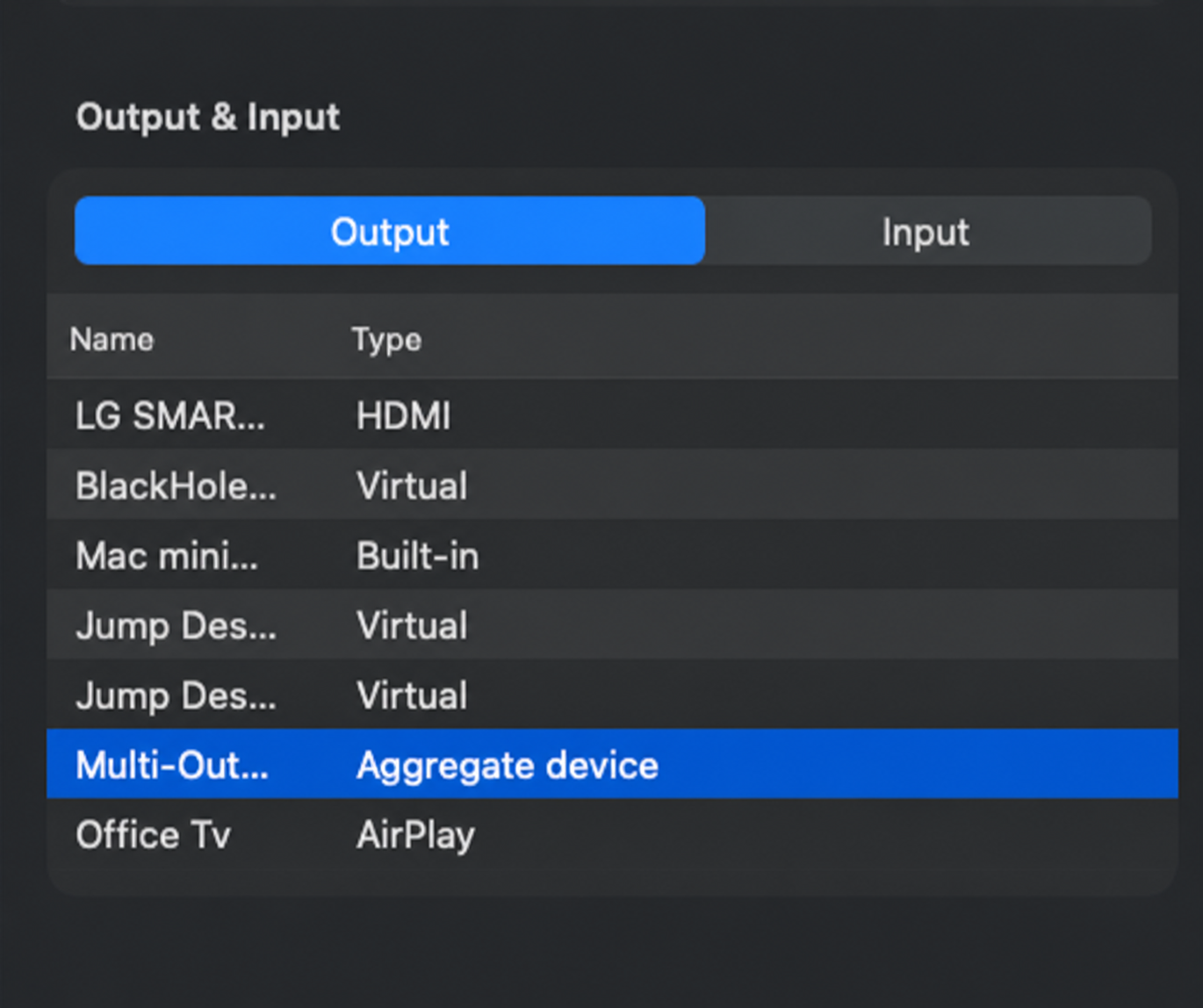
Choose Create Multi-Output Device, not Create Aggregate Device. In macOS Sound settings, the Type column may still say “Aggregate device”; choose the output named Multi-Output Device.
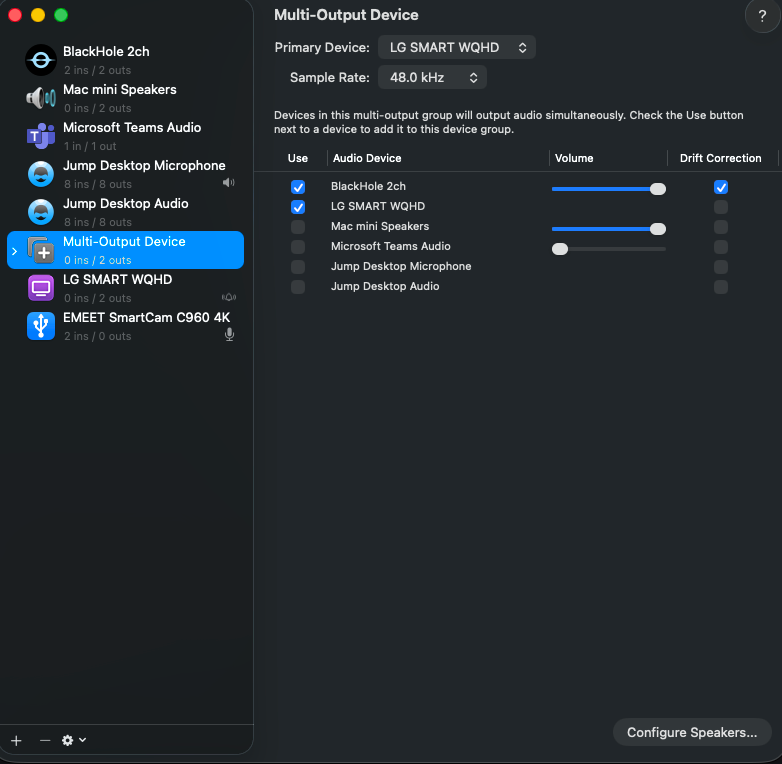
Do not select BlackHole by itself as macOS output. That can leave your speakers silent. The Multi-Output Device lets you hear audio while PoisePath receives the same computer playback.
Test the right source. BlackHole receives computer playback, not your physical microphone. For Mock Interview, switch back to your normal microphone instead.
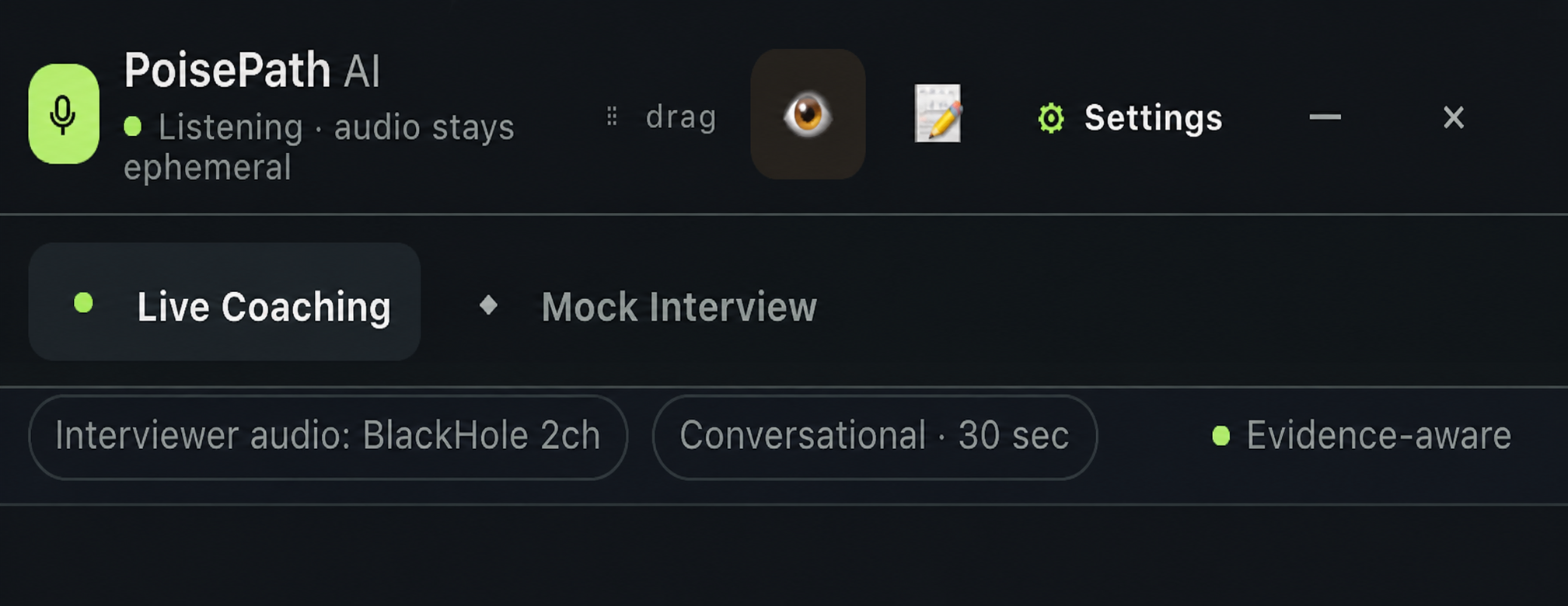
Check the device path first. Installation, macOS routing, PoisePath selection, and permissions are separate steps.
Finish the official installation, then quit and reopen PoisePath. Check Audio MIDI Setup as well. If BlackHole still does not appear, restart your Mac and confirm you installed the 2ch version through the official flow.
macOS may be sending sound to BlackHole alone. In Sound settings, choose your Multi-Output Device as Output. In Audio MIDI Setup, make sure your real speakers, headphones, or display audio are selected and set as the Primary Device.
Confirm macOS Output is the Multi-Output Device and PoisePath interviewer audio is BlackHole 2ch, not the Multi-Output Device. Press Listen, then play a video or other permitted computer audio. Speaking into your microphone will not test BlackHole.
No. Mock Interview uses a normal microphone for your spoken answer. BlackHole is only for the optional Live Coaching path that receives computer or interviewer audio.
Not for every setup. Restart if BlackHole does not appear after you finish the official install and reopen the relevant apps. A restart can help macOS load a newly installed audio driver.
That is expected. BlackHole is a virtual audio driver, not a normal macOS app. Look for it in Audio MIDI Setup, Sound settings, and PoisePath’s audio selection.
Mock Interview needs Microphone permission for your response. Live Coaching also needs the macOS screen-and-system-audio recording permission used by the beta for selected computer audio. Only enable the permissions shown by macOS for the PoisePath build you installed.
Beta reference
Download the companion PDF for a short first-run checklist. It covers the same mode choice, permissions, and optional Live Coaching path.
Return to app setup →